
Connecting AI Models to Skype for Business

Integrating AI models into Skype for Business can streamline communication and improve team productivity. Using NanoGPT's advanced AI tools like GPT-5.2 and DALL-E 3, you can automate tasks, generate content, and access real-time updates - all within Skype. NanoGPT operates on a pay-as-you-go model, starting at $0.006 per request, and ensures secure communication through local data storage and TEE-backed models.
What You Need to Start:
- Skype for Business Online license and NanoGPT account with a funded balance.
- Administrative access to the Power Platform admin center and Microsoft 365.
- Tools like Node.js (22.x+), PowerShell's Skype for Business Online Connector, and Azure AD Connect for hybrid setups.
Setup Steps:
- Confirm compatibility with Skype for Business Online or Hybrid environments.
- Configure settings in the Power Platform and Microsoft 365 admin centers.
- Create a NanoGPT API key and connect it to Skype using pre-built connectors.
- Test features like text generation, image creation, and web search within Skype.
Key Features:
- Real-time web search for accurate data ($0.006 per request).
- AI-driven text and image generation.
- Secure local data storage and privacy-focused tools.
Troubleshooting Tips:
- Allow up to 8 hours for bot registration to propagate.
- Ensure sufficient funds in your NanoGPT account.
- Adjust timeout settings for complex tasks.
This integration transforms Skype for Business into a powerful AI-enabled workspace, simplifying workflows and enhancing communication.
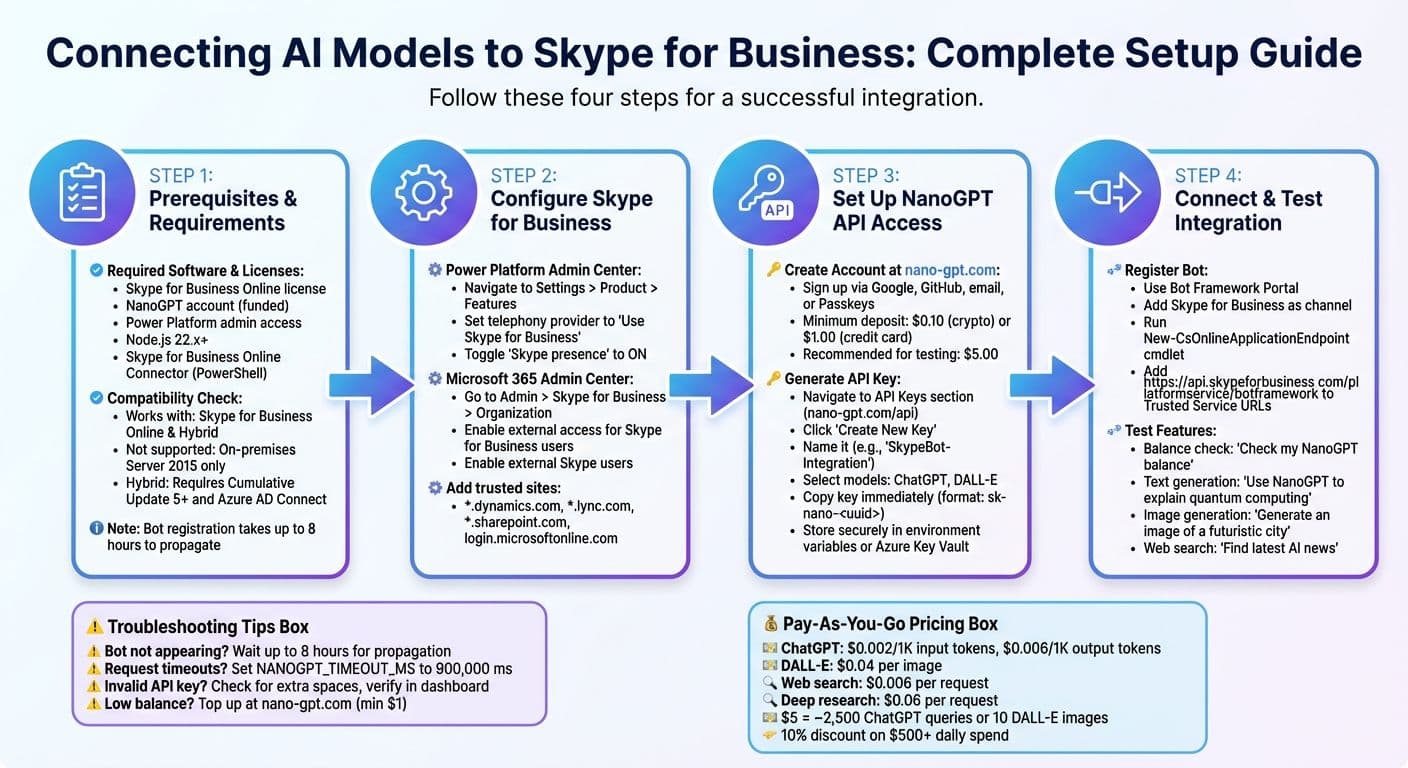
Step-by-Step Guide to Integrating AI Models with Skype for Business
How to configure CSM - Skype for Business Integration for Administrators
sbb-itb-903b5f2
What You Need Before Starting
To connect AI models to Skype for Business, you'll need to have specific tools, permissions, and accounts ready. This includes software, licenses, and administrative access to ensure a smooth setup.
Required Software and Licenses
To get started, you’ll need an active Skype for Business Online license. Without this, the integration simply won’t work.
You’ll also need an active NanoGPT account. Make sure your account is funded, as this is necessary to generate an API key for authenticating requests to AI models.
Administrative access is another must-have. Specifically, you’ll need Power Platform admin center privileges, which are required to register bots and application endpoints in your Skype for Business environment.
Additionally, each user interacting with AI features must have the Skype for Business client installed and running on their local machine. If your organization uses the NanoGPT Model Context Protocol (MCP), ensure Node.js version 22.x or later is installed on the host machine. You can confirm your Node.js version by running node --version in your command line.
For bot registration, the Skype for Business Online Connector module for PowerShell is essential. This module allows you to execute necessary commands, such as New-CsOnlineApplicationEndpoint, to set up application endpoints.
| Requirement | Purpose |
|---|---|
| NanoGPT API Key | Authenticates AI model requests |
| Skype for Business Online License | Required for integration |
| Node.js 22.x+ | Needed for running NanoGPT MCP server locally |
| Skype for Business Online Connector | PowerShell module for bot and endpoint registration |
| Power Platform Admin Access | Configure telephony and communication settings |
Checking Compatibility
AI integration through the Microsoft Bot Framework works only with Skype for Business Online and Skype for Business Hybrid environments. If your organization relies solely on Skype for Business Server 2015 in an on-premises setup, this integration method won’t be supported.
For hybrid environments combining on-premises and online servers, ensure your on-premises server is updated to Cumulative Update 5 or later. You can verify this using the Skype for Business Server Management Shell before attempting to run the New-CsHybridApplicationEndpoint cmdlet. Additionally, hybrid setups require Azure AD Connect for Active Directory synchronization, making AI endpoints accessible to all users.
Browser compatibility is another factor to consider. While click-to-call works across all major browsers, presence visibility (showing availability status) is only supported in Internet Explorer when https://*.dynamics.com is added to the trusted sites list. Unfortunately, Chrome, Firefox, and Safari do not support this feature.
Keep in mind that after registering an AI bot via PowerShell, it may take up to 8 hours for the bot to become visible to all users in your Skype for Business tenant. Plan accordingly to ensure a smooth rollout and avoid user confusion.
With these preparations and compatibility checks, you’ll be ready to set up Skype for Business for AI integration.
Preparing Skype for Business for AI Integration
To integrate AI into Skype for Business, you'll need to confirm compatibility, ensure the right licenses are in place, and configure settings in both Power Platform and Microsoft 365.
Setting Up Skype for Business in Power Platform Admin Center
Start by accessing the Power Platform admin center and selecting your target environment. From there, go to Settings > Product > Features to locate the communication-related configuration options.
In the Communications section, find the "Set the telephony provider" dropdown and choose Use Skype for Business. Then, toggle Skype presence to On. This step is key to enabling AI models to access and display user availability statuses within model-driven apps.
For presence information to work correctly, users must add the following URLs to their trusted sites list:
https://*.dynamics.comhttps://*.lync.comhttps://*.sharepoint.comhttps://login.microsoftonline.com
This is especially important for those using Internet Explorer, as browsers like Chrome, Firefox, and Safari may not fully support presence visibility.
Once this is done, you'll need to adjust the settings in Microsoft 365 to finalize the integration process.
Configuring Microsoft 365 Admin Settings
Next, head over to the Microsoft 365 admin center. Sign in and navigate to Admin > Skype for Business > Organization.
Under the General tab, set the "presence privacy mode" to determine how availability information is shared within your organization. Then, switch to the External Communications tab. Here, enable external access by turning on both "External Skype for Business users" and "External Skype users." These settings are necessary to allow NanoGPT APIs to interact with your Skype for Business environment. Without them, the AI models won't be able to send or receive messages effectively.
Getting NanoGPT API Access for AI Models
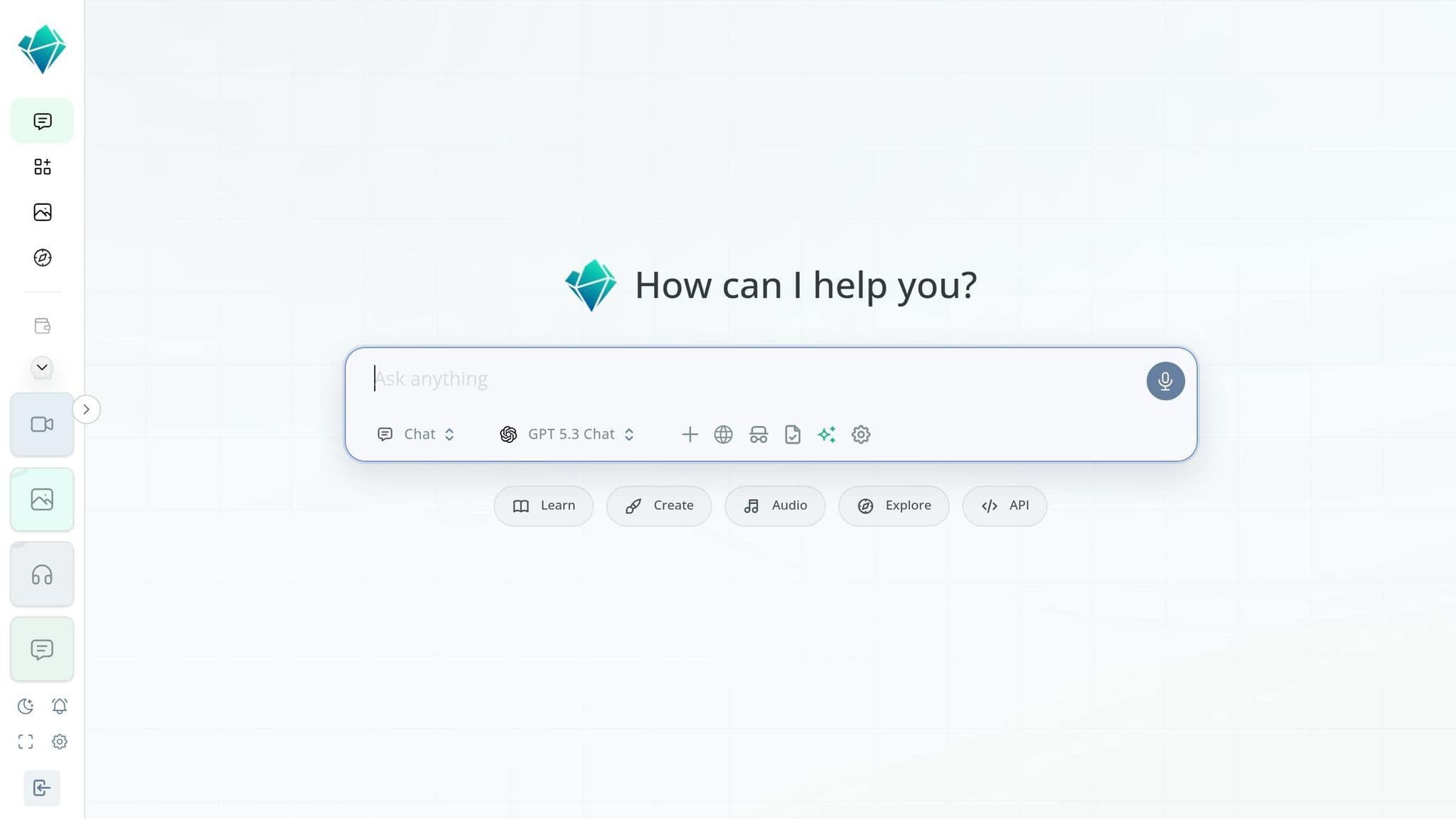
Once Skype for Business is configured, the next step is setting up NanoGPT to enable AI tools like ChatGPT and DALL-E. This process secures the API connection, unlocking AI functionalities within Skype for Business. The setup involves creating an account, funding it, and generating secure API keys to link your Skype for Business integration with NanoGPT's platform. Here's how to get started.
Creating and Funding Your NanoGPT Account
Head over to nano-gpt.com and click on Sign Up to create your account. You can register using Google or GitHub OAuth, a magic link, email and password, or Passkeys (WebAuthn).
Once your account is ready, log in to your dashboard and add funds. NanoGPT uses a pay-as-you-go model - there are no monthly fees. You only pay for what you use. The minimum deposit is $0.10 for cryptocurrency payments or $1.00 for credit card transactions.
For testing NanoGPT with Skype for Business, consider starting with a $5.00 deposit. This amount covers about 2,500 ChatGPT queries or 10 DALL-E image generations. Pricing is straightforward: ChatGPT costs $0.002 per 1,000 input tokens and $0.006 per 1,000 output tokens, while DALL-E images are $0.04 each. Plus, if you spend $500 or more on text models in a single day, you'll automatically receive a 10% discount the next day.
Creating API Keys for AI Models
To generate API keys, go to the API Keys section of your dashboard at nano-gpt.com/api. Click Create New Key, give it a descriptive name (e.g., "SkypeBot-Integration"), and select the models you plan to use, such as ChatGPT or DALL-E. Once done, your new API key will be generated.
Make sure to copy this key immediately - it will look something like sk-nano-<uuid> - because it won’t be shown again. For security, store the key in environment variables or a secure location like Azure Key Vault. Avoid hardcoding it into your scripts or including it in version control systems.
NanoGPT prioritizes privacy by storing all generated data locally on your device instead of external servers. This ensures your Skype for Business conversations and AI interactions remain secure. If your key is ever compromised, you can regenerate it from the dashboard. Additionally, usage logs are available to help you monitor activity and maintain control.
Connecting and Testing the AI Integration
Here's how to connect your NanoGPT API key to Skype for Business and ensure everything runs smoothly.
Using Pre-Built Connectors
Start by registering your bot on the Bot Framework Portal. Add Skype for Business as a channel, then run the New-CsOnlineApplicationEndpoint cmdlet using your bot's details.
Once registered, your bot can interact with NanoGPT's OpenAI-compatible endpoints, such as /v1/chat/completions, to deliver AI-generated responses. For additional capabilities, the Model Context Protocol (MCP) serves as a ready-to-use server connecting your bot to tools like nanogpt_chat, nanogpt_web_search, and nanogpt_image_generate. Just make sure the MCP server is running on Node.js version 22.x or newer.
Want to enable real-time web search in your bot responses? Add :online to the model name in your API calls. This feature costs $0.006 per request and boosts accuracy. For deeper research, use :online/linkup-deep at $0.06 per request. If you're handling long tasks like detailed web searches or image generation, set NANOGPT_TIMEOUT_MS to 900,000 ms to avoid connection drops.
Keep in mind that after registering your bot, it might take up to 8 hours to become visible to all users in your Skype for Business tenant. To enable outbound messaging, add https://api.skypeforbusiness.com/platformservice/botframework to your bot's Trusted Service URLs.
With the connector in place, you can now test the AI features within Skype for Business.
Testing AI Features in Skype for Business
Once your bot is discoverable, begin with a connectivity check. Send "Check my NanoGPT balance" to confirm your API key is valid and the MCP server is properly connected. This command uses the nanogpt_get_balance tool and should return your current balance in USD.
Next, test the text generation feature by sending a prompt like "Use NanoGPT to explain quantum computing." This checks the functionality of the nanogpt_chat tool and ensures Markdown rendering works. For image generation, try "Use NanoGPT to generate an image of a futuristic city at sunset." Since Skype for Business only supports plain text, the image will be delivered as a URL.
To test web search capabilities, request current information with a command like "Use NanoGPT web search to find the latest news about AI." This verifies that the nanogpt_web_search tool is operational. While Skype for Business supports Markdown and emoticons, responses default to plain text if Markdown isn't compatible with the client.
| Tool Name | Testing Command Example | Expected Output |
|---|---|---|
nanogpt_get_balance | "Check my balance" | Current USD balance |
nanogpt_chat | "Explain REST API design" | AI-generated text response |
nanogpt_image_generate | "Generate an image of a mountain" | Image URL or generated graphic |
nanogpt_web_search | "Latest AI announcements this week" | Fact-based response with real-time data |
Fixing Common Problems
If you encounter issues during testing, here are some troubleshooting tips:
- Unresponsive Bot: Double-check that your
NANOGPT_API_KEYis correctly set and that the MCP server is running on Node.js 22.x+. Errors like "Invalid API key" often stem from broken MCP launcher commands or extra spaces in the key value. Verify your key in the NanoGPT dashboard and ensure the launcher command is formatted correctly for your OS. - Windows-Specific Errors: Use
cmd /cwhen runningnpxto prevent connection issues. - Request Timeouts: For complex tasks, configure
NANOGPT_TIMEOUT_MSto 900,000 ms. - Discovery Delays: If your bot isn't appearing in search, remember that it can take up to 8 hours for new registrations to propagate.
- Hybrid Environment Issues: Ensure parameters in
New-CsHybridApplicationEndpoint(ApplicationId, DisplayName, SipAddress) match those inNew-CsOnlineApplicationEndpoint. - Insufficient Balance: If bot responses fail due to low funds, add money to your account at nano-gpt.com. The minimum deposit is $1. NanoGPT doesn’t charge for failed requests caused by errors or timeouts, and listing models is free.
| Issue | Likely Cause | Resolution |
|---|---|---|
| Bot not found in search | Propagation delay | Wait up to 8 hours for discovery |
| "Missing required env var" | Configuration error | Ensure NANOGPT_API_KEY is set |
| Request timeouts | Complex AI tasks | Set NANOGPT_TIMEOUT_MS to 900,000 ms |
| Formatting issues | Client incompatibility | Use plain text if Markdown isn't supported |
| Insufficient balance | Low account funds | Top up at nano-gpt.com |
Conclusion
By integrating AI models with Skype for Business through NanoGPT, you’ve added a powerful layer of functionality to your communication platform - all with a pay-as-you-go pricing structure. This means you’re only charged for what you use, keeping expenses manageable and transparent.
With NanoGPT, your team gains access to a diverse range of text and image models, allowing you to select the best tool for each specific task without committing to costly subscriptions. Plus, this setup prioritizes privacy. The NanoGPT Model Context Protocol server operates locally on your machine, ensuring API keys are stored securely on your device. For sensitive business communications, TEE-backed models deliver extra assurance with verifiable privacy through attestation reports.
The integration also amplifies productivity. Real-time web search enhances factual accuracy by accessing information updated within the last minute. Your team can seamlessly generate images, transcribe YouTube videos, or conduct web research - all without leaving Skype for Business. These features turn your chat platform into a dynamic workspace, capable of handling everything from customer support to advanced research tasks.
To avoid interruptions during critical operations, keep an eye on your balance using the nanogpt_get_balance tool. With thorough configuration and testing, you can create an AI-powered Skype for Business environment that simplifies workflows and boosts efficiency.
FAQs
Can I use this with an on-prem Skype for Business Server only setup?
Yes, it’s possible to connect AI models like ChatGPT to an on-premises Skype for Business Server, but you’ll need hybrid connectivity to make it happen. This setup requires the Microsoft Bot Framework and proper configuration to synchronize your on-premises and online environments. Key steps include ensuring Active Directory synchronization and setting up a hybrid deployment. For a detailed guide, check out the official Microsoft documentation.
How do I keep my NanoGPT API key secure in this integration?
To keep your NanoGPT API key safe, store it in environment variables or manage it through the secure interface provided in the NanoGPT web app. Avoid exposing your keys in client-side code or logs, as this can lead to unauthorized access. Once you save a key in the web app, it becomes hidden for privacy reasons - so think of it like a password and handle it with care. When making requests, include the key in the headers using this format: Authorization: Bearer YOUR_API_KEY. Always keep your key confidential.
What should I check first if the bot doesn’t show up or respond?
If the bot isn’t appearing or responding, start by confirming it’s properly connected and set up. Check the connection status to ensure the bot is registered and enabled in Skype for Business. For environments using hybrid connectivity, make sure it supports the bot and that users can access it. These checks can help pinpoint any issues with connectivity or configuration.