
Offline AI Inference: Complete Guide 2026
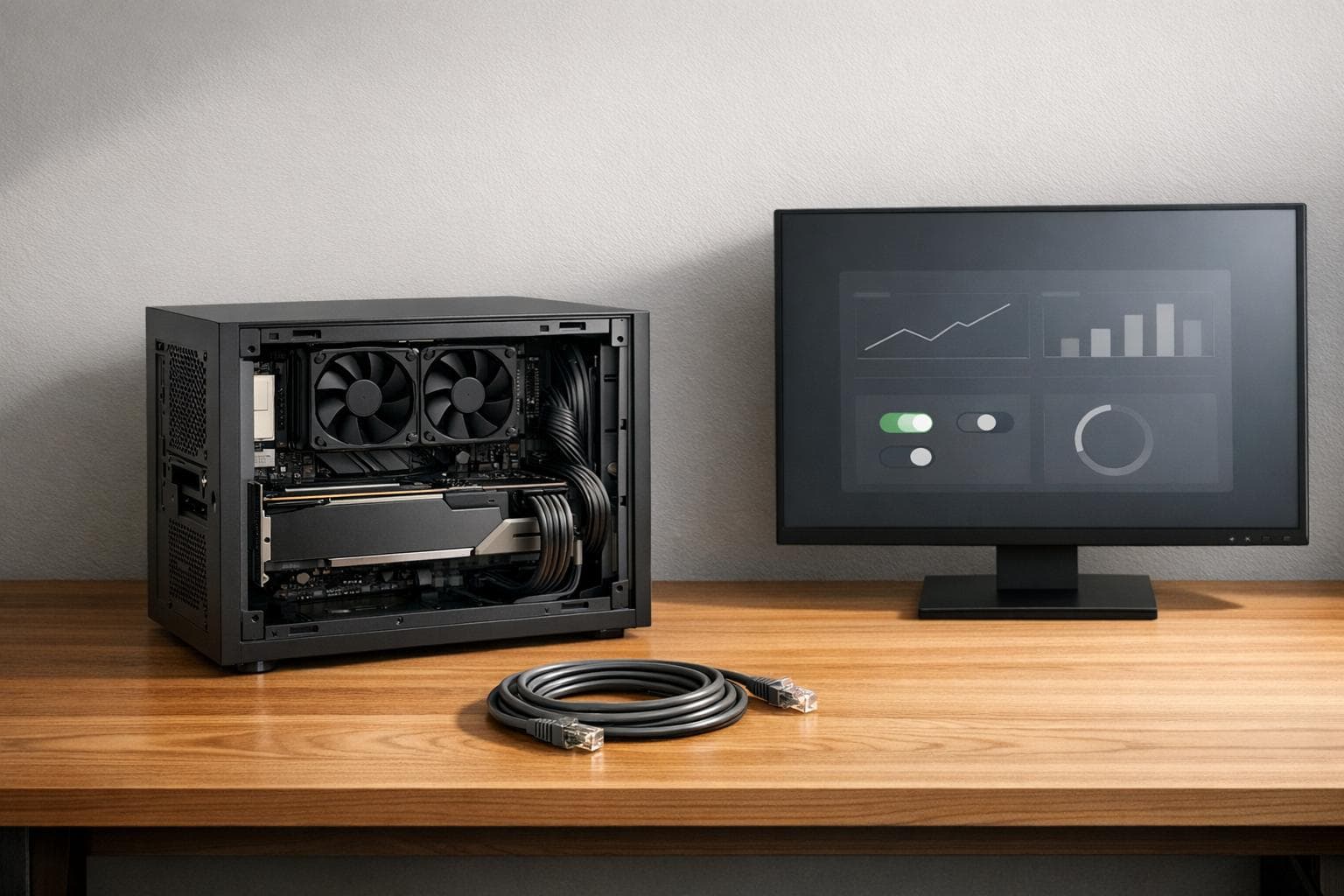
Offline AI inference lets you run AI models directly on your device, ensuring privacy, reducing latency, and eliminating reliance on cloud servers. This approach is now viable due to advancements in hardware and model optimization techniques like quantization.
Key takeaways:
- Hardware matters: GPUs with sufficient VRAM are essential for smooth performance. For example, 8GB VRAM supports smaller models, while 16GB handles larger ones.
- Quantization saves resources: Techniques like Q4_K_M reduce model size by up to 70% with minimal quality loss.
- Privacy-first tools: Solutions like NanoGPT store data locally, ensuring security without sacrificing functionality.
Offline inference is particularly useful for industries like healthcare and finance, where data privacy is critical. With tools, optimized hardware, and efficient models, you can achieve cloud-like performance entirely offline.
Run AI Locally: The Ultimate Guide to Free, Private, and Offline Models (Ollama)
Hardware for Offline AI Inference
The hardware you choose plays a major role in determining your model's capacity, how fast it responds, and its overall performance. For basic offline AI inference, a standard desktop or laptop can do the job.
Minimum vs. Recommended Hardware Specs
When it comes to offline AI inference, the GPU takes center stage - not the CPU. Specifically, the amount of VRAM your GPU has is critical. VRAM is where the model resides during inference, and if the model doesn’t fit, performance takes a nosedive.
"The GPU is the most critical component for local AI - and the CPU is surprisingly unimportant." - Hardwarepedia
Here’s a quick comparison of the minimum and recommended hardware specs for AI inference:
| Specification | Minimum | Recommended |
|---|---|---|
| CPU | Intel 12th gen or Ryzen 5000+ | Ryzen 7 or Intel i7 |
| RAM | 16GB | 32GB |
| GPU (VRAM) | 8GB (e.g., RTX 3060) | 16GB (e.g., RTX 4060 Ti 16GB) |
| Storage | 512GB NVMe SSD | 1TB NVMe SSD |
With a minimum setup, such as an RTX 3060 with 8GB of VRAM, you can handle 7B parameter models at Q4 quantization. This setup is perfect for tasks like writing, research, and coding assistance. If you step up to 16GB of VRAM, you can run larger models in the 13B–30B range, achieving performance levels comparable to cloud-based solutions. For budgets, an 8B-model build starts around $600, while a mid-range setup for 14B–32B models will cost between $1,200 and $1,500.
Beyond these specs, enhancing data flow can further boost performance.
Getting More Out of Your Hardware
One key factor that separates fast inference from slow is memory bandwidth. This measures how quickly data moves from memory to the GPU during token generation. For instance, an RTX 4090 with 1,008 GB/s of bandwidth can generate 128–150 tokens per second for an 8B model. Meanwhile, a CPU-only setup, with a bandwidth of about 96 GB/s, might only manage 5–10 tokens per second. That’s a performance gap of 5–15×.
"For privacy use cases where you're running models continuously, aim for a GPU where your target model fits entirely in VRAM." - Hardwarepedia
To get the most out of your hardware, quantization is a game-changer. A 7B model in full FP16 precision needs about 14GB of memory, but with Q4 quantization, it drops to just 4GB. That’s a 3.5× reduction in memory usage with minimal impact on quality. Additionally, having system RAM that’s at least double your VRAM ensures smoother workflows, especially when models need to partially offload to system memory.
These tweaks and optimizations are key to achieving a smooth offline AI inference experience.
AI Model Formats and Quantization
AI Model Quantization Levels: Size vs. Quality Tradeoffs
After setting up your hardware, the next step is selecting the right model format and quantization level. These decisions are crucial for ensuring that your model runs efficiently on your setup without hiccups.
Common Model Formats Explained
GGUF has become the go-to standard for local inference in 2026. This format replaced the older GGML standard and simplifies things by bundling everything - like weights, tokenizer, and metadata - into a single file. This makes it easy to transfer models across different machines and operating systems. By April 2026, Hugging Face hosted over 135,000 GGUF model files.
Another format you’ll come across is Safetensors, which is widely used for model training and storage on Hugging Face. However, for local inference, Safetensors files often need to be converted to GGUF for optimal performance.
For developers, many offline tools now provide a local server that mimics the OpenAI-compatible API. This allows you to switch from a cloud-based model to a local GGUF model by simply updating the base_url in your code.
Now, let’s look at how quantization plays a key role in optimizing these models for local execution.
How Quantization Works and Why It Matters
Quantization reduces a model’s precision to lower its memory requirements. In full precision, model weights are stored as 16-bit floats (FP16). Quantized models, on the other hand, use 4 or 8 bits to represent these weights. The result? A significant reduction in the VRAM needed to run the model on your hardware.
"Quantization is like JPEG compression for AI models. A RAW photo is 50MB. A JPEG is 5MB - 90% smaller, but it still looks 95% as good." - Lingdas1
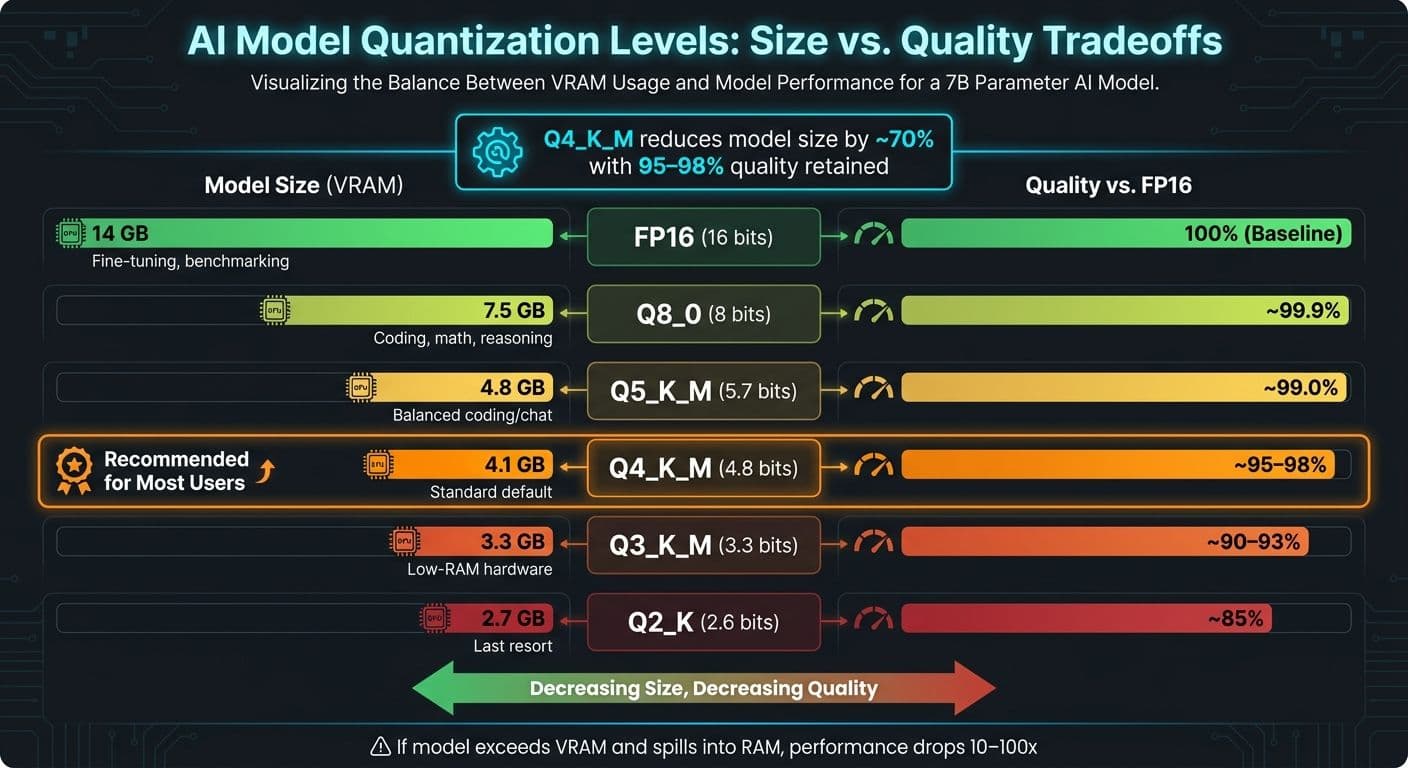
One of the most efficient quantization formats is Q4_K_M. It uses super-blocks to maintain precision where it’s most needed while compressing less critical layers. For example, a 7B model in FP16 requires around 14 GB of VRAM. In Q4_K_M, the same model fits into just 4.1–4.8 GB - a reduction of roughly 70%, with quality retained at 95–98% of the original.
Here’s a comparison for a 7B model across different quantization levels:
| Quantization | Bits/Weight | 7B Model Size | Quality vs. FP16 | Best For |
|---|---|---|---|---|
| FP16 | 16 | ~14 GB | 100% (Baseline) | Fine-tuning, benchmarking |
| Q8_0 | 8 | ~7.5 GB | ~99.9% | Coding, math, reasoning |
| Q5_K_M | 5.7 | ~4.8 GB | ~99.0% | Balanced coding/chat |
| Q4_K_M | 4.8 | ~4.1 GB | ~95–98% | Standard default |
| Q3_K_M | 3.3 | ~3.3 GB | ~90–93% | Low-RAM hardware |
| Q2_K | 2.6 | ~2.7 GB | ~85% | Last resort |
For most users, Q4_K_M is the ideal starting point, offering a great balance between quality and VRAM usage. However, if your tasks demand higher precision - like coding, math, or structured data tasks such as JSON extraction - consider stepping up to Q5_K_M or Q6_K. Keep in mind that if a model exceeds your VRAM and spills into system RAM, performance can slow down dramatically - by 10 to 100 times. Always aim for a model that fits entirely within your VRAM.
Offline AI Inference Tools in 2026
Once you've chosen your model format and quantization level, the next step is selecting a tool to run it efficiently. For offline inference that prioritizes privacy, NanoGPT emerges as a standout option. It's specifically built to combine performance with strict data control. Let’s explore how NanoGPT fits into this space.
Popular Offline AI Tools
NanoGPT is tailored for offline inference, granting users access to a wide range of AI models for both text and image generation. Supported models include ChatGPT, Deepseek, Gemini, Flux Pro, Dall-E, and Stable Diffusion. Its pay-as-you-go pricing model eliminates the need for subscriptions, and all user data is stored locally, ensuring complete privacy.
What makes NanoGPT particularly appealing is its ability to deliver powerful AI capabilities without requiring expensive or high-end hardware. This makes it a practical choice for individuals and teams looking for flexibility and control.
Feature and Use Case Comparison
Here’s a quick breakdown of NanoGPT’s key features and benefits for privacy-focused offline AI use:
| Feature | NanoGPT |
|---|---|
| Platform | Cross-platform |
| Privacy Approach | Data stored locally on your device |
| Model Access | Text and image generation (ChatGPT, Deepseek, Gemini, Flux Pro, Dall-E, Stable Diffusion) |
| Pricing | Pay-as-you-go, no subscription |
| Best For | Broad model access with complete privacy |
NanoGPT aligns perfectly with the goals of offline AI inference - keeping your data secure, minimizing latency, and giving you full control over your workflows, all while maintaining access to a diverse range of high-quality AI models.
sbb-itb-903b5f2
Privacy and Security in Offline AI Inference
While optimizing hardware and model efficiency is essential, keeping your data secure during AI inference is just as critical. Running AI locally ensures that your data stays on your device, reducing risks like interception, third-party logging, or accidentally exposing private information during training.
How Offline Inference Protects Your Data
The main advantage of offline inference is simple but powerful: all your data - whether prompts or responses - remains on your device. No external API calls, no third-party servers, and no unnecessary exposure. This is more important than many people realize. A 2025 Cisco study revealed that 78% of AI prompts contain sensitive personal or business details users wouldn’t knowingly share publicly.
Consider what happened in early 2023: Samsung engineers unintentionally leaked proprietary semiconductor blueprints by pasting them into a cloud-based AI tool. This incident led to a company-wide ban on cloud AI tools and a shift toward local, on-premise AI solutions. Charlotte Stewart of CraftRigs summed it up well:
"There is no version of local inference where your data leaves your machine."
Offline inference also shields you from data breaches, changes in privacy policies, and even legal subpoenas. For environments demanding the highest level of security, air-gapping - completely isolating your system from external networks - provides an added layer of protection.
To enhance privacy further, there are a few practical measures you can implement. For example, bind your local inference server to 127.0.0.1 to keep it confined to your device, and disable telemetry whenever possible. Setting OLLAMA_SKIP_TELEMETRY=1, for instance, prevents background data pings.
NanoGPT: A Privacy-First AI Solution
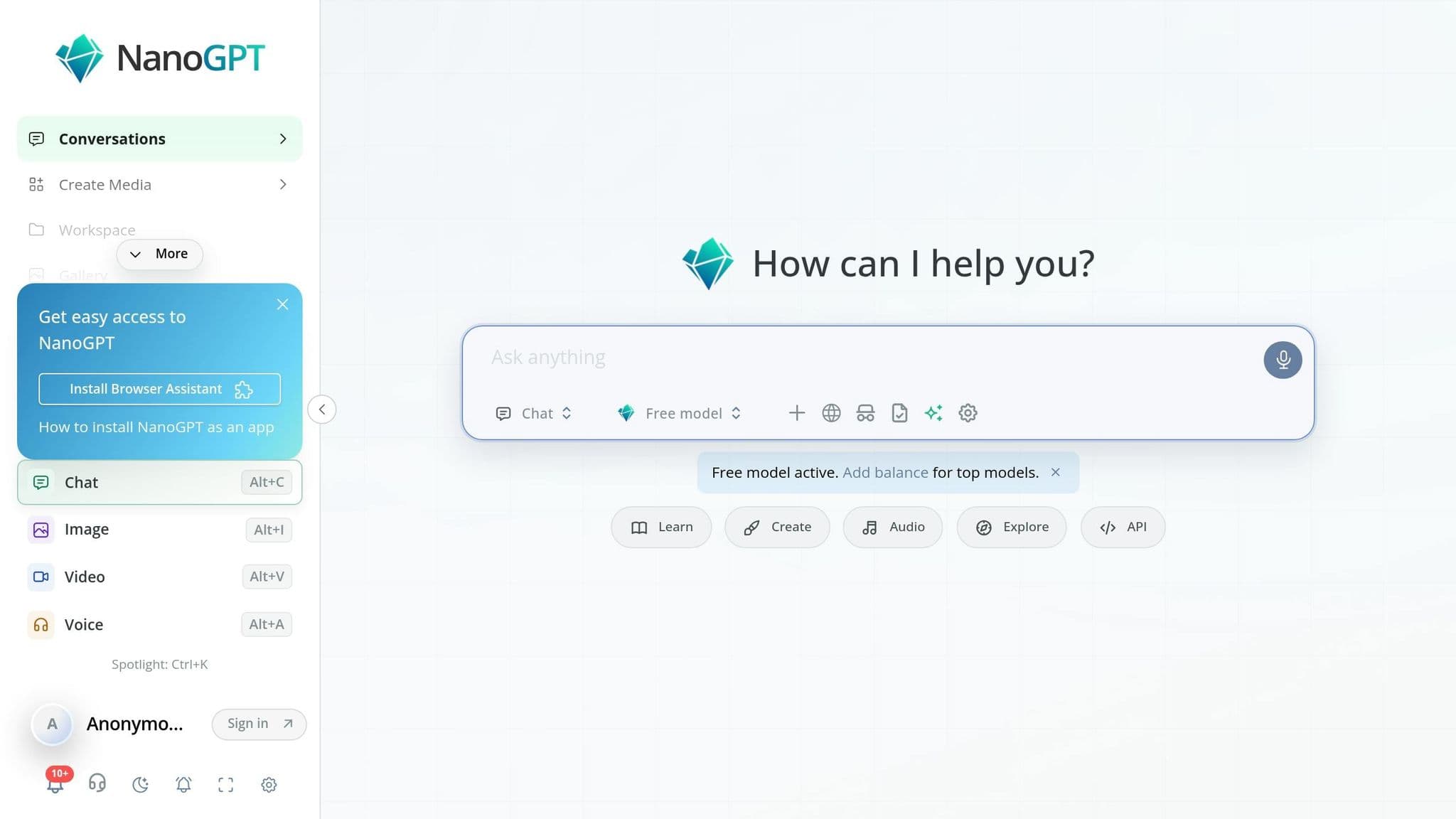
NanoGPT offers a privacy-focused alternative, ensuring all user data stays on your device. Nothing is transmitted to external servers during your sessions. With a flexible pay-as-you-go pricing model starting at $0.10 and no subscription requirements, NanoGPT caters to those who prioritize both privacy and affordability.
This makes it an excellent choice for handling sensitive tasks like managing confidential business documents or conducting private research. As AIAgentsKit aptly put it:
"Offline AI is the only architecture that makes privacy guarantees verifiable, not just contractual."
NanoGPT also gives users the option to operate without creating an account, eliminating any additional data trail. For anyone looking to use advanced text and image generation tools without compromising data control, NanoGPT stands out as a reliable option. Its strong privacy focus lays the groundwork for the performance optimizations covered in the next section.
Performance Tuning and Troubleshooting
After implementing hardware tweaks and quantization strategies, fine-tuning your system's performance ensures your local inference operates smoothly and efficiently.
Tips for Better Inference Performance
When it comes to local AI speed, memory bandwidth is the real game-changer. As Hardwarepedia explains:
"Memory bandwidth - not compute power, not CPU speed - is the single most important spec for local AI."
To maximize performance, aim to fit your entire model into VRAM. Even spilling a few layers into system RAM can cause a dramatic slowdown - up to 10–30× slower token generation. For example, the RTX 4090, with its 1,008 GB/s bandwidth, is about 15 times faster than standard DDR5 RAM, which offers 96 GB/s.
Here are some key settings to optimize:
- Context window size (
num_ctx): Keep it as small as necessary. For chat applications, this usually means 2,048–4,096 tokens. Larger windows, like 32K, can demand an extra 4.5 GB of VRAM for a 7B model. - Keep-alive duration: Set this to 30 minutes to prevent delays from model reloading between requests.
For CPU-based inference, dual-channel RAM is a must. Using a single stick halves memory bandwidth and significantly reduces token generation speed. If you're on Apple Silicon, using optimized inference libraries can boost performance by 20–30%.
In interactive chat scenarios, responsiveness feels natural at around 10–15 tokens per second. Falling below this rate can make the experience frustrating. To achieve this speed:
- A 7B model at Q4 quantization typically requires about 4 GB of VRAM on a mid-range GPU.
- A 70B model at Q4 quantization may need 35–40 GB of VRAM.
If you've fine-tuned these settings and still encounter problems, the troubleshooting tips below can help.
Fixing Common Offline Inference Problems
Most local AI issues can be traced back to a few common causes. Start by checking your inference tool's process status to see if any model layers are loaded on the CPU instead of the GPU - offloading layers to the CPU often creates bottlenecks.
| Problem | Likely Cause | Recommended Fix |
|---|---|---|
| Out of Memory (OOM) | KV cache exceeded available VRAM | Reduce the context window (num_ctx) or switch to less aggressive quantization (e.g., Q4 to Q3) |
| Output below 3 tokens/sec | Layers spilling into system RAM | Use more aggressive quantization or opt for a smaller model |
| Slow time-to-first-token | Model reloading between requests | Increase the keep-alive duration to keep the model loaded (e.g., 30 minutes) |
| Garbled/nonsense output | Corrupted download or incorrect configuration template | Re-download the model and verify the TEMPLATE block in your Modelfile |
| GPU not detected | Driver or CUDA version mismatch | Run nvidia-smi to confirm GPU visibility and ensure CUDA versions match |
| Performance drops over time | Thermal throttling above 90°C | Improve airflow or adjust GPU fan settings to stay below 85°C |
| Tool won't start | Port conflict (e.g., ports 11434 or 1234) | Identify and terminate the conflicting process using lsof -i :11434 (Mac/Linux) or netstat -aon (Windows) |
For repetitive outputs caused by low temperature settings, try increasing the temperature to a range of 0.7–1.0. If token generation slows during longer conversations - often due to KV cache bloat - reduce the context window size or enable KV-cache quantization (e.g., Q8_0), which minimizes quality loss.
Conclusion and Key Takeaways
Offline AI inference in 2026 offers a practical solution for those prioritizing complete control over their data. By running models locally, you eliminate any external exposure, keeping everything securely on your machine.
Here are the key points to remember:
- VRAM is critical: To achieve interactive speeds, having sufficient VRAM is essential.
- Efficient quantization: Techniques like Q4_K_M reduce model sizes by about 3.5× with minimal impact on quality.
- Maximizing performance: Ensuring the model fits entirely in VRAM enhances both speed and security during offline inference.
As Charlotte Stewart, an Architecture Guide, puts it:
"Running local AI solves this problem [privacy] completely. There is no version of local inference where your data leaves your machine."
While the initial hardware investment might seem steep, the long-term benefits are clear. Over three years, moderate-to-heavy users can save 70–80% on costs compared to cloud APIs, as ongoing expenses are reduced to just electricity. Moreover, open-weight models like Llama 3.3 70B and Qwen 2.5 72B are now highly competitive with advanced cloud-based options, offering robust capabilities without significant trade-offs.
For those venturing into local inference, tools like NanoGPT provide a convenient starting point. NanoGPT stores data locally, requires no subscription, and operates on a pay-as-you-go model starting at just $0.10. It supports a variety of models, from text to image generation, without the hassle of managing your own hardware.
FAQs
How can I determine the model size my GPU supports?
The amount of VRAM your GPU has plays a huge role in determining its performance. If a model's size exceeds your GPU's VRAM capacity, it might not load at all. Worse, it could fall back on system RAM, which can lead to noticeable slowdowns.
Here’s a quick rule of thumb: Add 1–2 GB to the quantized weight size of your model to account for KV cache. For instance, a 7B parameter model in Q4 quantization typically requires around 4.4 GB of VRAM, plus additional memory for context.
Need exact numbers? Use a VRAM calculator to avoid any guesswork. It’s a handy tool to ensure your setup can handle the workload efficiently.
Which quantization level should I start with?
For most everyday needs and local setups, Q4_K_M stands out as a solid choice, offering a good mix of speed, memory efficiency, and quality output.
If you have extra VRAM available, Q5_K_M can deliver improved results. For those with abundant resources and seeking near-original precision, Q8_0 is the go-to option. However, steer clear of Q2 or Q3 unless your memory constraints are severe, as these tend to compromise reasoning and accuracy.
How can I keep a local AI server truly private?
To maintain privacy when using AI tools, a few key steps can make a big difference. Start by binding your server to localhost - this prevents it from being exposed to the network. Turn off telemetry, analytics, and automatic updates to minimize data sharing. It's also smart to exclude AI-related directories from system search indexing and enable full-disk encryption to protect your data.
For enhanced security, consider blocking outbound traffic using firewall rules or even setting up an air-gapped system. If you're using NanoGPT, it offers privacy-oriented features like optional PII redaction and zero-data processing for cloud-based access. These tools can help ensure sensitive information stays secure.