Keyboard Shortcuts: Power User Guide
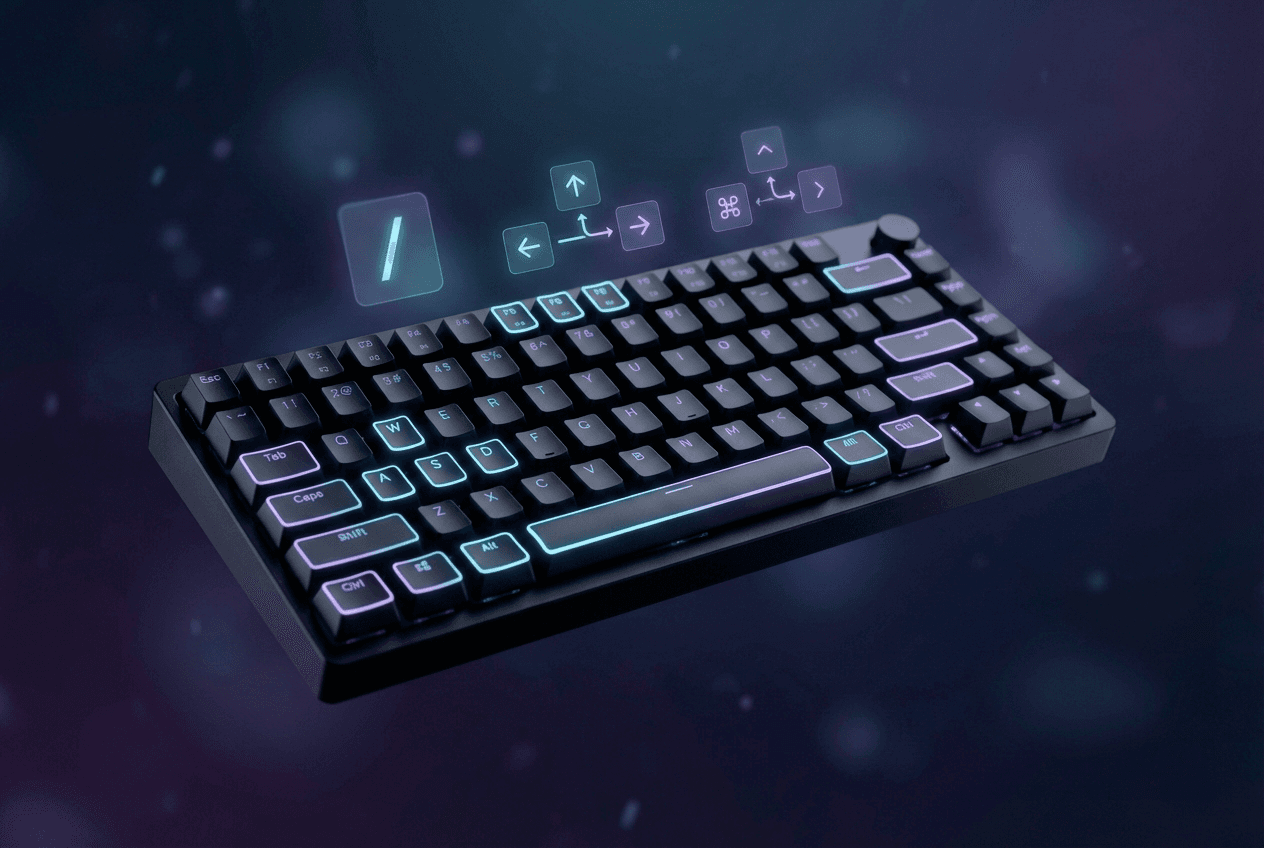
Speed matters. Whether you're in a flow state coding with AI, generating images, or navigating between conversations, keyboard shortcuts keep your hands where they belong.
Here's every shortcut available in NanoGPT.
New Conversation
Start fresh in any mode without touching your mouse.
| Shortcut | Action |
|---|---|
Alt/Option + C | New chat conversation |
Alt/Option + I | New image generation |
Alt/Option + V | New video generation |
Alt/Option + A | New voice/audio |
Chat Input
These shortcuts work when you're in the message input field.
| Shortcut | Action |
|---|---|
Enter | Send message (when enabled in settings) |
Shift + Enter | New line |
Arrow Up | Previous message (when input is empty) |
Arrow Down | Next message in history |
The arrow key history navigation is useful for quickly editing and resending previous messages.
Model Selection
Quickly switch models without leaving the keyboard.
| Shortcut | Action |
|---|---|
/ | Open model selector (when in chat input) |
Cmd/Ctrl + / | Open model selector (from anywhere) |
The slash shortcut opens a searchable model selector. Type to filter models, use arrow keys to navigate, and press Enter to select.
Media & Gallery
Shortcuts for image and video generation workflows.
| Shortcut | Action |
|---|---|
Cmd/Ctrl + Enter | Generate image/video/audio |
Left Arrow | Previous image (in gallery viewer) |
Right Arrow | Next image (in gallery viewer) |
F | Toggle favorite (in image viewer) |
When viewing generated images, the arrow keys let you quickly browse through your creations. Press F to add images to your favorites for easy access later.
Navigation
Move around the app efficiently.
| Shortcut | Action |
|---|---|
Alt/Option + L | Focus chat input |
Alt/Option + S | Toggle sidebar |
Alt/Option + M | Go to Create Media page |
Alt/Option + H | Go to conversation history/search |
Alt/Option + P | Go to previous chat |
The Alt/Option + P shortcut is a quick way to jump back to your last conversation. Combined with Alt/Option + H for searching history, you can navigate your entire conversation archive without leaving the keyboard.
General
Universal shortcuts that work throughout the app.
| Shortcut | Action |
|---|---|
Cmd/Ctrl + Shift + Backspace | Delete current conversation |
Esc | Close modal/dialog |
F1 | Show keyboard shortcuts help |
Press F1 anytime to see a quick reference of all available shortcuts.
Platform Notes
- Mac: Use
Optionfor Alt shortcuts andCmdfor Ctrl shortcuts - Windows/Linux: Use
AltandCtrlrespectively
Tips for Power Users
- Quick model switching: Hit
/to open the model selector, type a few characters to filter (like "claude" or "gpt"), and press Enter. - Message editing: Press
Arrow Upwhen the input is empty to recall your last message, edit it, and resend. - Rapid image iteration: Use
Cmd/Ctrl + Enterto generate, then arrow keys to browse results andFto favorite the best ones. - Context switching:
Alt/Option + Pto jump to your previous conversation,Alt/Option + Cto start a new one. - Workspace management:
Alt/Option + Sto collapse the sidebar for more screen space when you need to focus.
These shortcuts are available on desktop. On mobile, tap-based navigation provides similar functionality through the UI.