Top 7 AI Tools for Color Correction
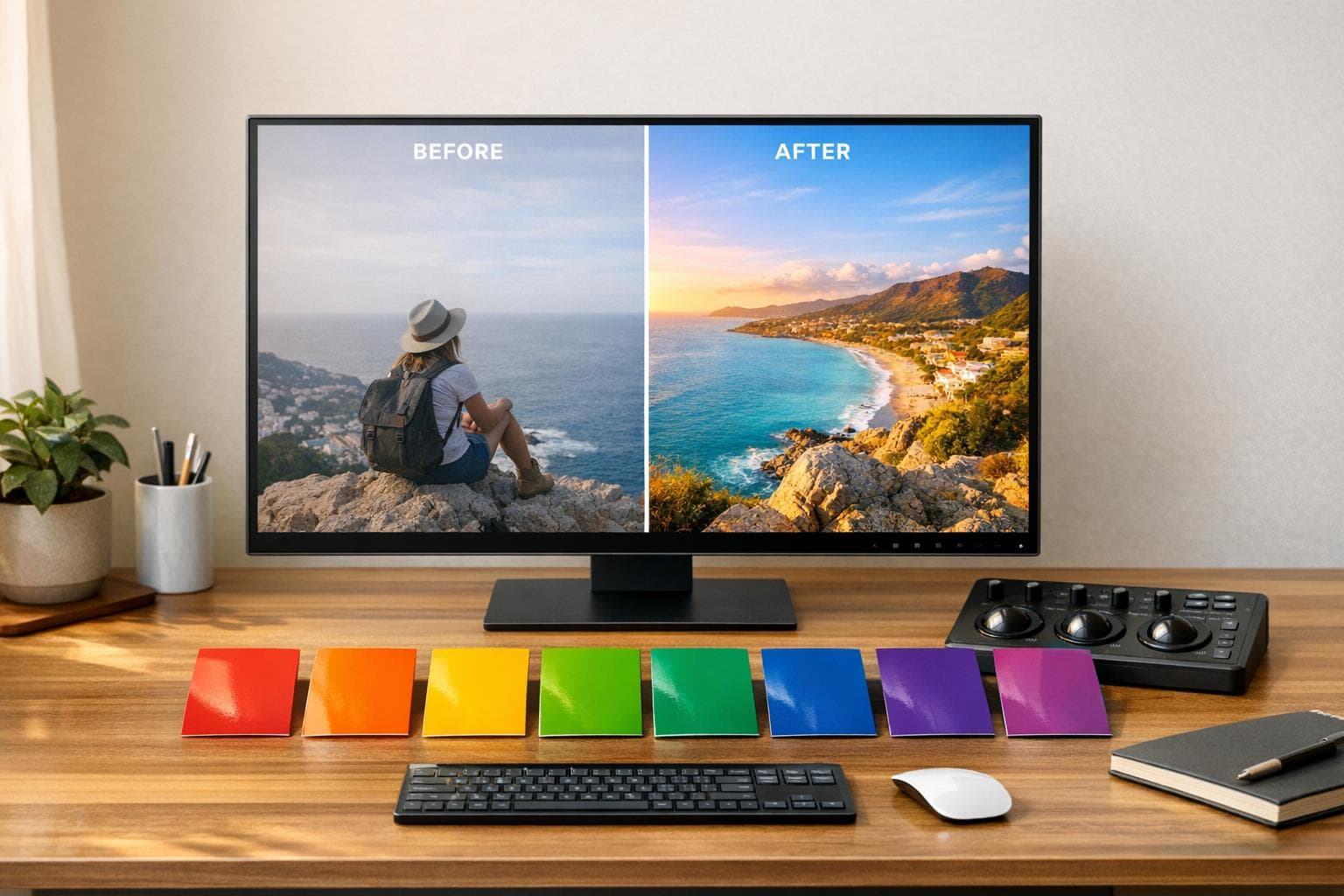
Color correction has become faster and more accessible thanks to AI tools. These tools analyze images and videos to fix lighting, skin tones, and color balance with minimal effort. Whether you're a filmmaker, photographer, or social media creator, these tools can save you hours of manual editing. Here's a quick overview of the top AI-powered options:
- DaVinci Resolve: Ideal for professional filmmaking with advanced AI tools and precision editing.
- Pixelbin: Browser-based tool for quick, bulk edits, popular in e-commerce.
- CapCut: Free, user-friendly video editor for mobile and desktop, perfect for social media.
- Color.io: Transfers color styles from reference images for consistent visuals.
- Retouch4Me: Focused on skin tone matching and professional-grade color grading.
- Upscale.media: Combines color correction with image upscaling for restoration and enhancement.
- Pixlr: A simple, browser-based editor for quick fixes and social media content.
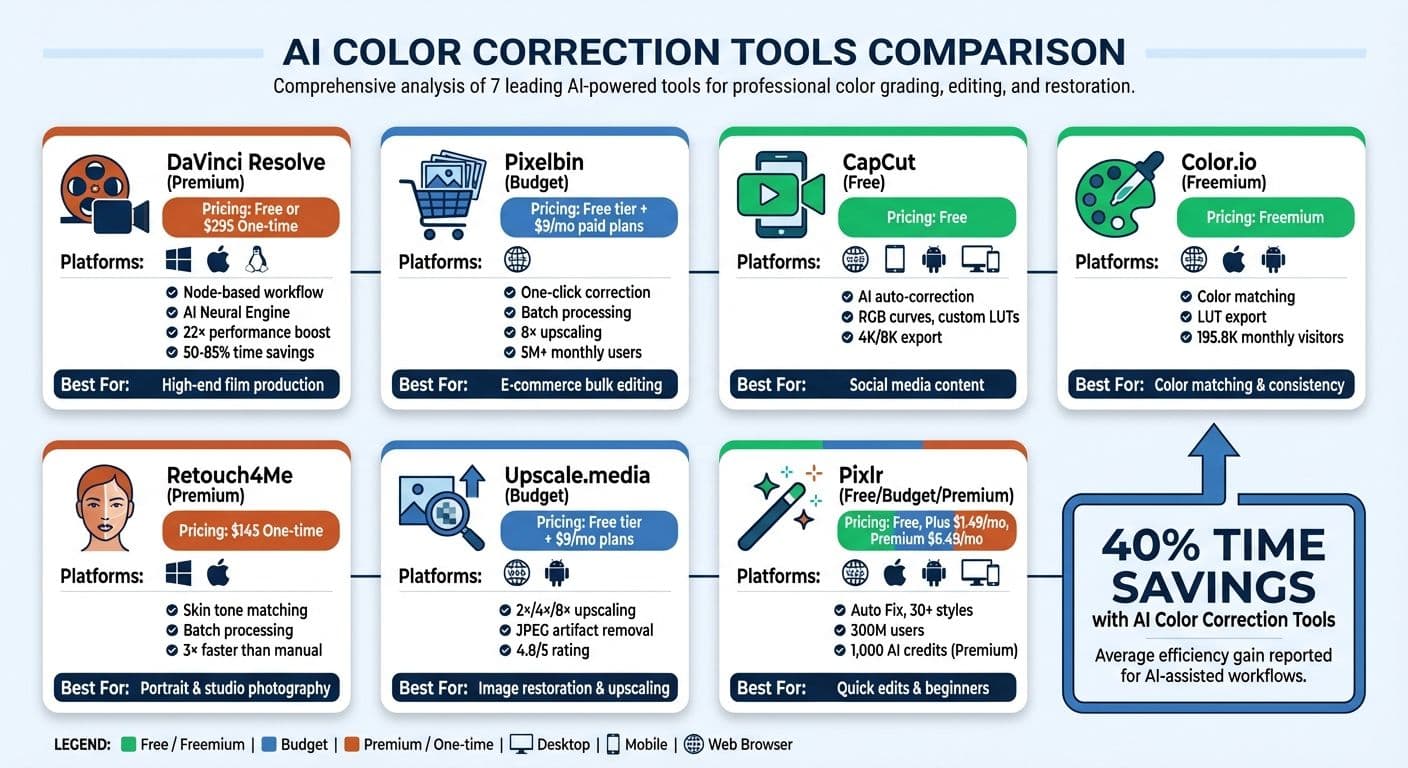
Each tool offers unique features and pricing options, making it easy to find one that fits your needs. Below is a quick comparison to help you decide.
Quick Comparison
| Tool | Pricing | Platform Support | Best For |
|---|---|---|---|
| DaVinci Resolve | Free or $295 one-time purchase | Windows, macOS, Linux | High-end film production |
| Pixelbin | Free tier, paid plans from $9/mo | Web browser | E-commerce and bulk editing |
| CapCut | Free | Web, iOS, Android, Desktop | Social media and casual video editing |
| Color.io | Freemium model | Web, iOS, Android | Color matching and aesthetic consistency |
| Retouch4Me | $145 one-time fee | Windows, macOS | Portrait and studio photography |
| Upscale.media | Free tier, paid plans from $9/mo | Web, Android | Image restoration and upscaling |
| Pixlr | Free, Premium from $6.49/mo | Web, iOS, Android, Desktop | Social media and quick photo edits |
These tools simplify color correction, saving time and improving results. Start with free versions to find what works best for your workflow.
AI Color Correction Tools Comparison: Features, Pricing and Best Use Cases
AI Color Correction with Davinci Resolve 19
sbb-itb-903b5f2
1. DaVinci Resolve
DaVinci Resolve has become a go-to tool in Hollywood, especially for its advanced color correction capabilities. It's a favorite in feature films and high-end TV production, thanks to its powerful node-based workflow. This approach allows for complex, non-destructive editing, with each node handling specific adjustments like color balance or skin tone correction - ensuring image quality remains intact.
Pricing
DaVinci Resolve comes in two versions:
- Free Version: Offers professional-grade features, including HDR grading, and supports 8-bit video formats at up to 60 fps in Ultra HD (3,840 × 2,160).
- DaVinci Resolve Studio: A one-time purchase of $295.00 unlocks advanced tools like the DaVinci Neural Engine, AI-powered features (Magic Mask, Face Refinement), and support for 10-bit video at up to 120 fps with resolutions beyond 4K.
Platform Compatibility
The software is compatible with Windows, macOS, and Linux desktop systems. For optimal AI performance, high-end hardware is essential - NVIDIA RTX 4080 GPUs (or better) with at least 8 GB of VRAM are recommended. Additionally, a workstation setup requires a 7–12 minute AI optimization process to ensure smooth operation.
Core Features
DaVinci Resolve stands out for its AI-driven tools. Features like Auto Color and Shot Match can cut down technical work by 50–85%. With the DaVinci Neural Engine v3.5, users can experience up to 22× performance boosts, while AI masking works up to 4× faster than manual rotoscoping. For those who prefer hands-on control, tools like color wheels, Qualifiers, Power Windows, and Face Refinement offer precise adjustments. Professional scopes (Parade, Waveform, Vectorscope, and Histogram) provide objective measurements for accurate editing.
Ideal Use Cases
DaVinci Resolve shines in professional filmmaking where precision is critical. It's also a strong option for restoration projects, offering tools to handle dirt removal, dust busting, and deflickering old film scans. Its multi-user collaboration feature, powered by Blackmagic Cloud, allows editors and colorists to work on the same timeline simultaneously. While it includes quick export presets for platforms like YouTube, Vimeo, and TikTok, the software's steep learning curve makes it best suited for users ready to invest time in mastering its node-based interface.
With its mix of cutting-edge AI tools and precision-focused features, DaVinci Resolve sets a high standard as we explore other top editing solutions.
2. Pixelbin
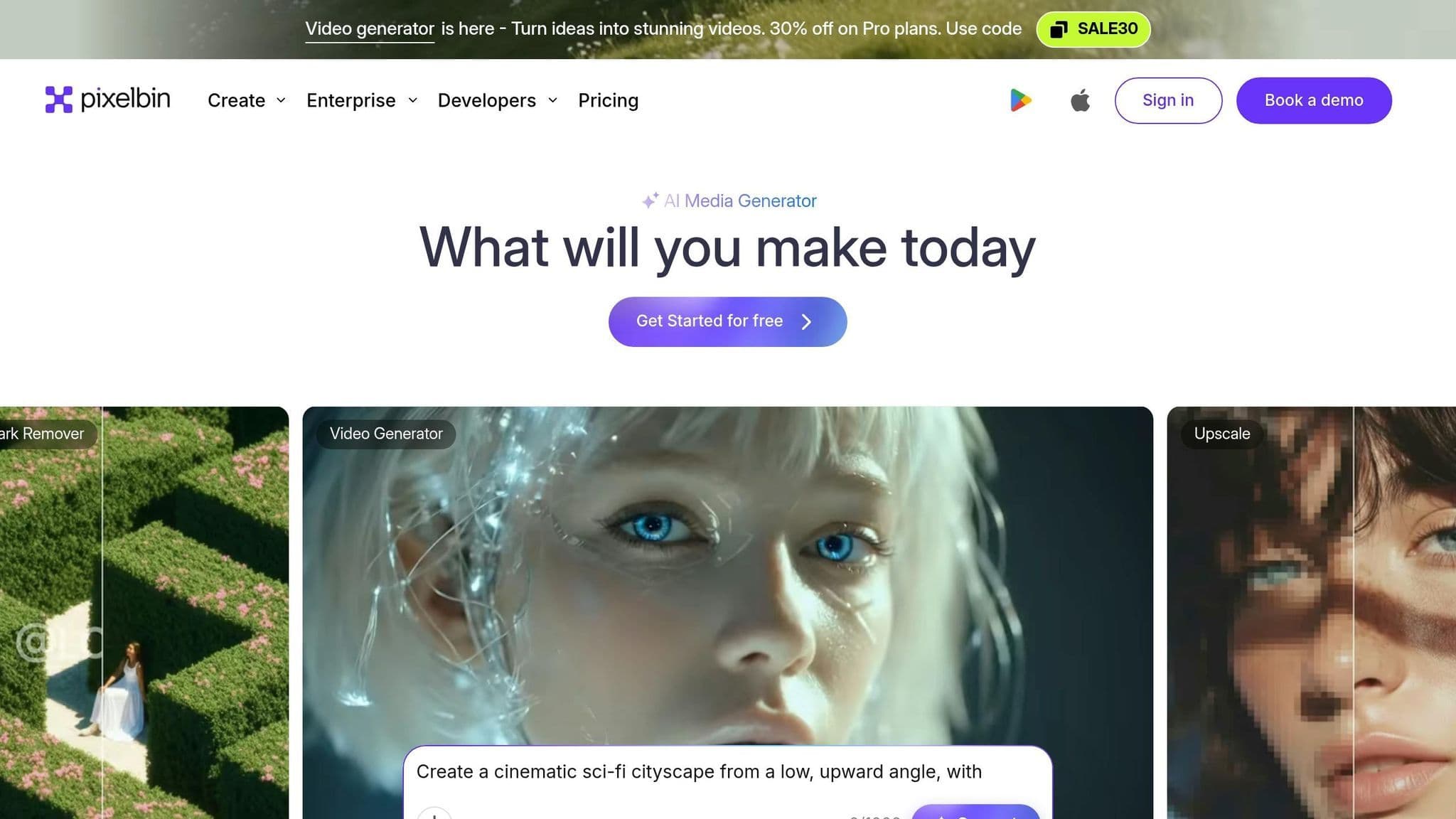
Pixelbin has taken AI-driven color correction to a whole new level, offering a browser-based platform that's perfect for handling large volumes of edits. Its focus is on simplicity and speed, eliminating the need for downloads or installations. With a user base of over 5 million monthly users and 58 million customers in total, it's a go-to option for anyone needing efficient, large-scale image editing solutions.
Pricing
Pixelbin provides new users with 10 free credits - 3 of which are accessible without signing up. Registered users enjoy an additional 3 free credits every month. Paid plans start at $9.00 per month, with enterprise-level packages available for businesses requiring high-volume batch processing or API access. Even during free trials, users can download HD images without watermarks.
Platform Compatibility
Pixelbin works entirely within your browser, making it accessible across desktops, laptops, tablets, and smartphones. It supports image formats like JPG, JPEG, PNG, WEBP, and AVIF, with a maximum file size of 10 MB.
Core Features
Pixelbin’s standout feature is its one-click AI color correction tool, which automatically adjusts tones, balances shades, and fixes exposure issues - no manual input required. Other key features include:
- Batch Processing: Edit thousands of images at once.
- Pixelbin API: Seamlessly integrate the platform into your workflows for large-scale editing.
- AI Smart Select: Apply precise, selective corrections to specific areas of an image.
- Image Upscaling: Enhance image resolution up to 8× while sharpening details and maintaining consistent tones.
These tools make Pixelbin a versatile option for professionals across various industries.
Ideal Use Cases
Pixelbin shines in e-commerce photography, offering tools to quickly achieve consistent white balance and perform bulk edits. For example, one retail brand transformed its catalog in just 4 days, reducing costs by 40%. It’s also a strong choice for restoring old photos, thanks to its AI Photo Colorizer, which identifies elements like faces, hair, and skies to add natural-looking colors to black-and-white images. Social media creators can benefit too, using its resize and background generation tools to prepare content for Instagram and other platforms with ease.
"The product is well suited to transform catalog images for e-commerce businesses... resizing and background edits in bulk in record time." – Swathi Kartha
3. CapCut
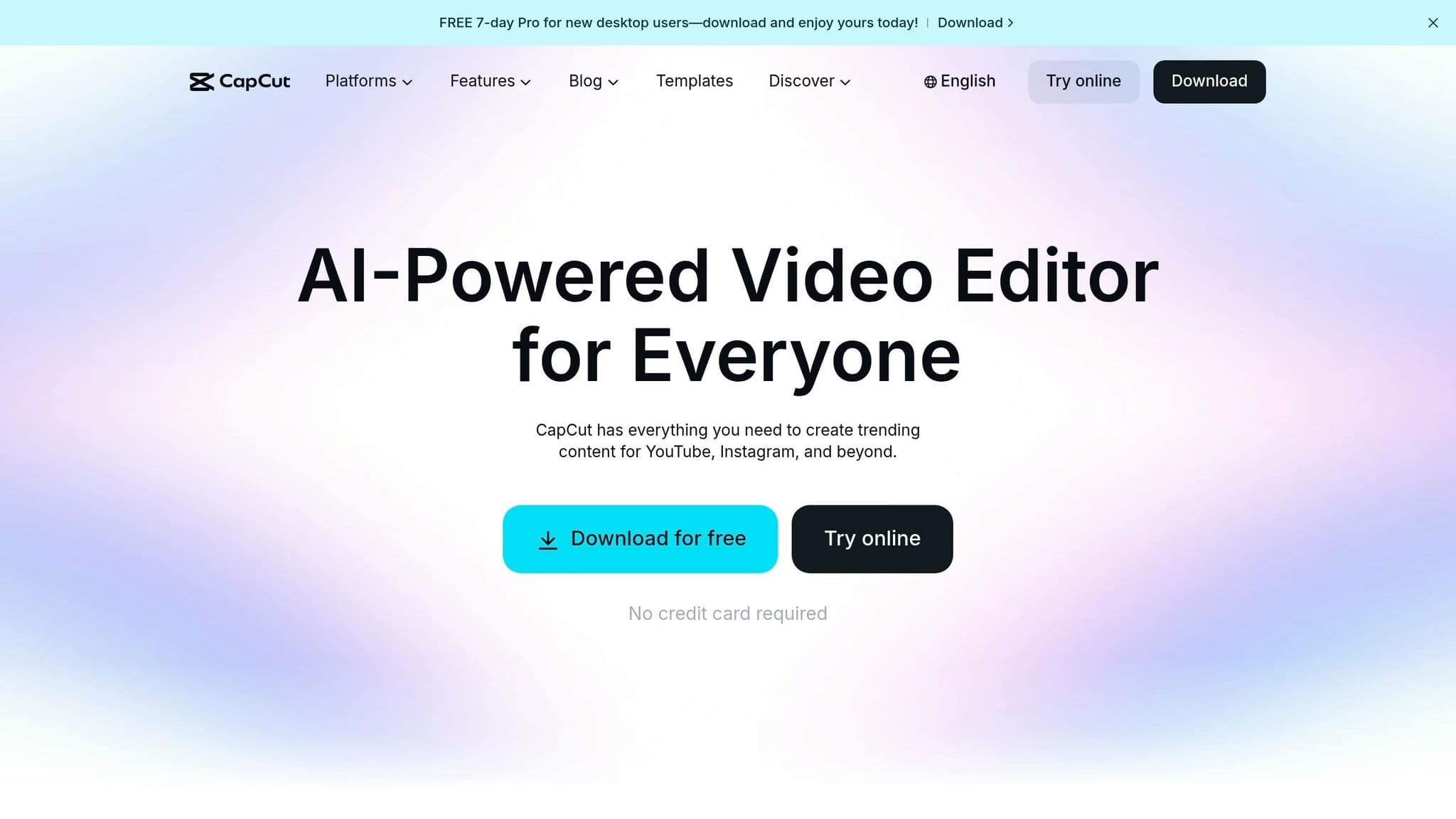
CapCut provides fast, AI-driven color correction tools designed for creators of all skill levels. The best part? It’s completely free - no credit card needed. Whether you’re working on a desktop or editing videos on your phone, CapCut works seamlessly across web browsers, Windows, macOS, iOS, and Android devices. This flexibility means you can easily edit videos from anywhere.
Pricing
CapCut offers its advanced color correction tools - like RGB Curves, Color Wheels, and custom LUTs - at no cost. There are no hidden fees or locked features, and you can even export videos in 4K or 8K resolution without watermarks.
Platform Compatibility
CapCut is available across multiple platforms. The web-based editor works directly in your browser with no installation required. For more complex projects, you can use its desktop apps on Windows or macOS, or mobile apps on iOS and Android. This versatility ensures you have the right tools for any editing scenario.
Core Features
CapCut combines AI automation with manual editing options, giving creators both speed and control. Its AI Color Correction tool automatically adjusts exposure, contrast, and saturation, delivering polished results in seconds. The Color Match feature uses AI to match the color palette of a reference clip to your video, ensuring consistency. For those who prefer hands-on adjustments, tools like HSL sliders, RGB Curves, and three-way Color Wheels allow for detailed tweaks. You can also import custom LUTs (.CUBE or .3DL files) to apply cinematic styles instantly.
| Feature Category | Specific Tools | Primary Benefit |
|---|---|---|
| Automated | AI Color Correction, Color Match | Quick, consistent adjustments across clips |
| Manual/Pro | HSL, Curves, Color Wheels | Full creative control over tone and style |
| Presets | Cinematic LUTs (.CUBE/.3DL), Filters | Apply professional looks instantly |
| Correction | Exposure, Contrast, Saturation, White Balance | Fix common lighting and color issues |
Ideal Use Cases
CapCut is perfect for creating content for platforms like TikTok, Instagram, YouTube, and Facebook. It’s especially useful for vlogs, tutorials, and product demos where speed is crucial. E-commerce sellers can also take advantage of its batch processing capabilities to create consistent product visuals. The AI ensures realistic edits, preserving details like fabric textures or material sheen for a professional finish.
"CapCut's AI color correction offers instant results with no professional skills required." – CapCut
4. Color.io
Color.io takes AI-powered color grading to the next level by letting you transfer the color style of any reference image directly to your own projects.
With Color.io, you can extract and apply color grades from reference images - whether it's a film still, a professional photo, or any image you admire. This means you don’t have to start from scratch. Instead, you can replicate the tone and aesthetic of a favorite visual. The platform draws in approximately 195,800 monthly visitors and operates on a freemium model, giving you access to essential features at no cost.
Pricing
Color.io follows a freemium model. The free version includes basic tools for color correction and matching, though it may display ads. For those who need more advanced options, paid tiers unlock additional features. You can explore the platform’s AI capabilities without committing to any upfront payment.
Platform Compatibility
This tool is designed for maximum flexibility. On desktop, you can use it as a fullscreen Chrome App for both Mac and PC. For mobile users, standalone apps are available for iPhone, iPad, and most Android devices. This setup allows you to start editing on your phone while on the go and seamlessly transition to your desktop when you’re ready to finalize your project.
Core Features
Color.io’s Match AI feature lets you transfer color grades from reference images and export them as 3D LUTs, making it easy to integrate with professional workflows. You can also extract color palettes from any image to kickstart your edits, then refine the results using advanced manual tools. This combination of quick AI adjustments and detailed controls makes it a versatile option for both beginners and professionals.
Ideal Use Cases
Color.io is perfect for color matching across multiple images or quickly applying a specific visual style. Photographers rely on it to maintain consistency in a photo series. Video creators use it to design custom color grades and export them as LUTs for their editing software. Social media creators love its speed, enabling them to apply cinematic looks to their posts in just seconds, whether they’re working on a phone or desktop.
5. Retouch4Me AI Color Grader
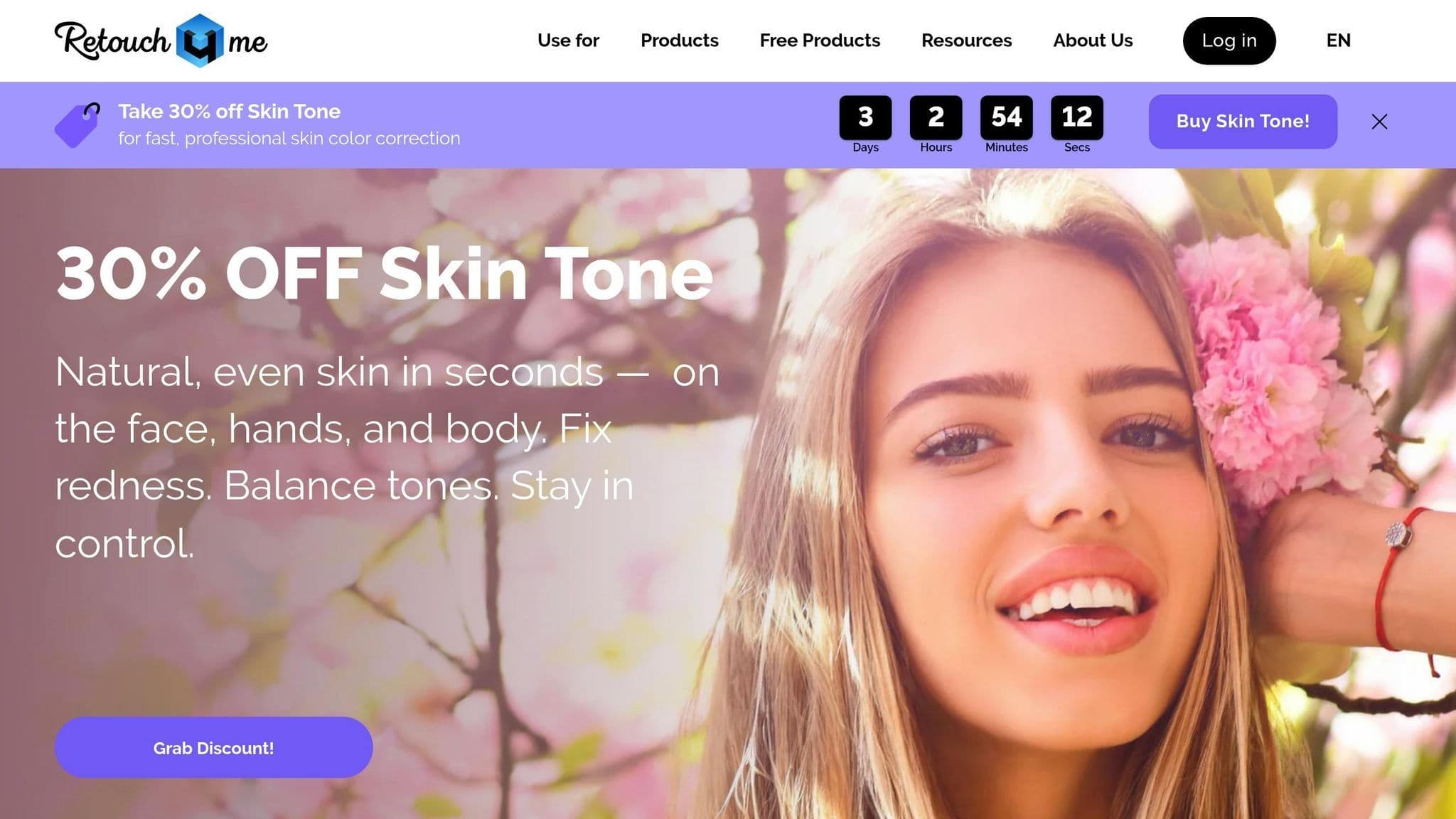
Retouch4Me takes a fresh approach to color matching, offering a tool that uses reference-based matching to instantly replicate the color style of any image while keeping skin tones natural. Whether you upload a film still, a painting, or a professional photo, this software applies the color style to your work seamlessly. It eliminates the need for manual grading with precise AI-powered adjustments.
Pricing
The full Color Match plugin is available for a one-time fee of $145, which includes one active key and two backups for use on up to two personal devices. There’s also a free version, Color Match Free, which grants access to the LUT Cloud library of pre-made filters but does not allow saving results from custom reference matching. If you want to test all features, a free trial offers 20 free retouches.
Platform Compatibility
Retouch4Me works as both standalone software and a plugin for popular editing tools like Adobe Photoshop, Lightroom, Capture One, DaVinci Resolve, Premiere Pro, and Final Cut Pro. It’s compatible with Windows 7/10/11 and macOS 10.15 or newer. The software requires at least 6GB of RAM and a GPU with 4GB of VRAM to run smoothly.
Core Features
- Color Match AI: Automatically replicates the color palette of a reference image.
- LUT Cloud: Provides a collection of cinematic filters that can be exported as LUTs for use in other editing tools.
- Adjustments: Fine-tunes contrast, saturation, hue, and brightness across entire projects.
- Batch Processing: Speeds up workflows by retouching hundreds of images - up to three times faster than manual editing.
Ideal Use Cases
Retouch4Me is perfect for professionals across various fields:
- Wedding and Event Photographers: Achieve consistent color grading across large image sets, cutting down editing time.
- Videographers: Use the Color Match OFX plugin in DaVinci Resolve to unify footage from multiple cameras by matching them to a single reference frame.
- Social Media Creators: Easily maintain a cohesive aesthetic inspired by favorite movies or high-performing posts.
- Commercial and E-Commerce Photography: Handle high-resolution workflows, including RAW images and 4K video, with ease.
With its ability to cater to diverse professional needs, Retouch4Me delivers an efficient and powerful solution for AI-driven color correction.
6. Upscale.media
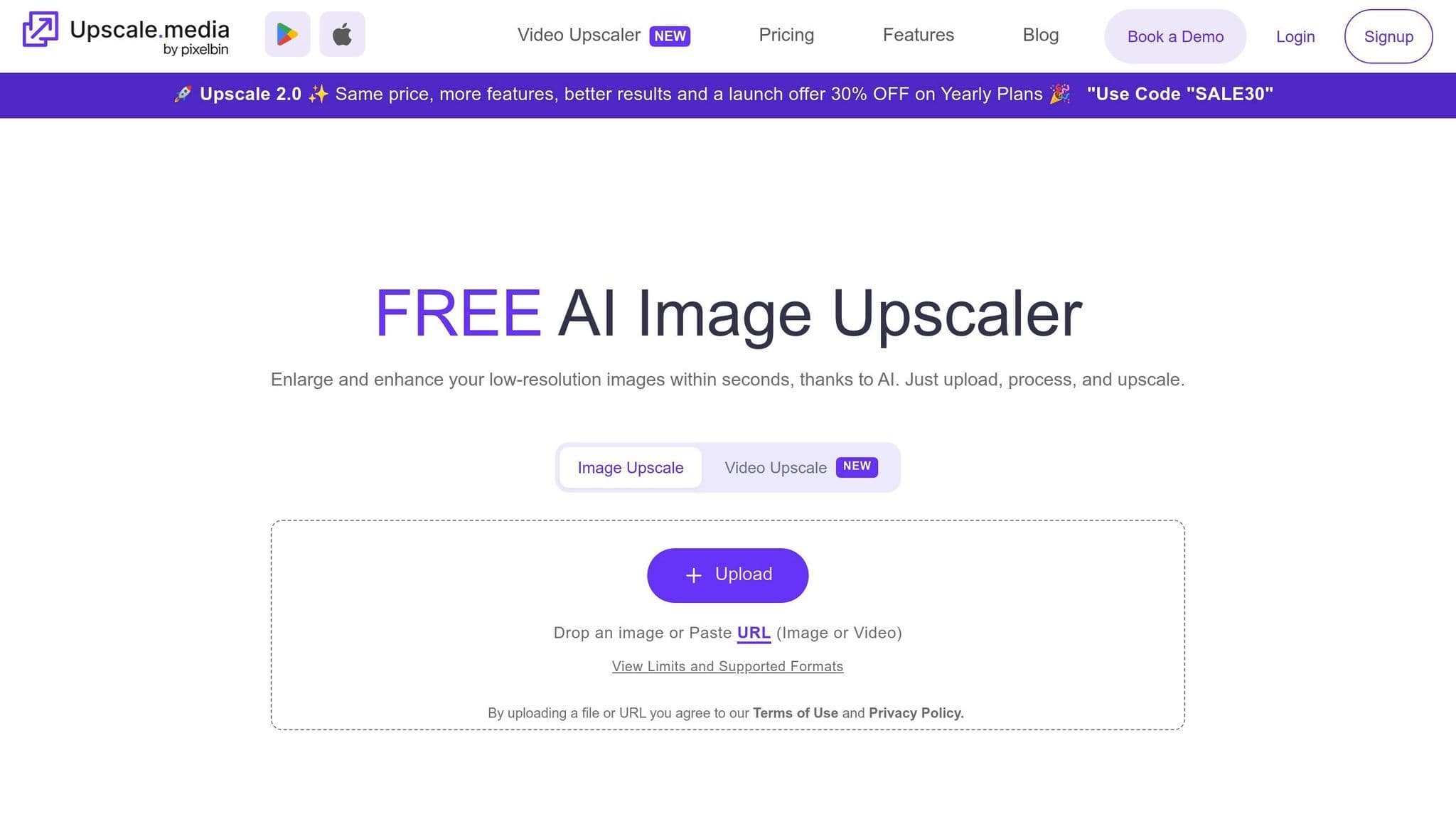
Upscale.media combines AI-driven color correction with image upscaling, addressing exposure issues and tone imbalances pixel by pixel. It adjusts highlights, shadows, and midtones with precision. Most images are processed in just seconds, though larger files may take up to a minute to complete.
Pricing
The platform provides a free tier, offering 3 credits and 3 downloads per month after signing up, or one image per day without registration. Paid plans start at $9 per month for 10 credits with watermark-free downloads. Annual subscriptions range from $19 to $59.50 per month, offering 100 to 500 credits. For those who prefer one-time purchases, pricing begins at $19 for 45 credits. Enterprise users can opt for custom pricing tailored to API access and bulk processing needs.
Platform Compatibility
Upscale.media works seamlessly across desktop and mobile browsers and also offers an Android app. It supports a variety of image formats, including PNG, JPG, JPEG, WebP, and HEIC, as well as video formats like MP4, MOV, and WebM for clips up to one minute long. Output resolutions for upscaling can reach up to 10,000 x 10,000 pixels, while standard processing handles images as large as 20,000 x 20,000 pixels. Whether you're editing on a smartphone or a desktop, the platform maintains consistent performance.
Core Features
Upscale.media offers a range of powerful features, including:
- One-click color enhancement.
- Upscaling options of 2x, 4x, or 8x using neural networks to reconstruct details.
- Batch corrections for maintaining consistency across multiple images.
- Real-time preview for fine-tuning tones.
- Removal of JPEG artifacts to improve image clarity.
Ideal Use Cases
Thanks to its advanced features, Upscale.media serves a variety of users. E-commerce businesses use it to sharpen product images, enhancing the visual appeal and building customer trust. Social media creators rely on it to refine blurry selfies or travel photos, giving them a polished, professional look. The platform is also ideal for restoring old family photos, bringing out details and correcting colors - scanning originals at 600 DPI or higher ensures the best results. Real estate agents use it to enhance property photos, making interior and exterior shots stand out in listings.
With a 4.8/5 rating from 266 reviews, users frequently highlight its ability to uncover hidden details and its intuitive interface.
7. Pixlr
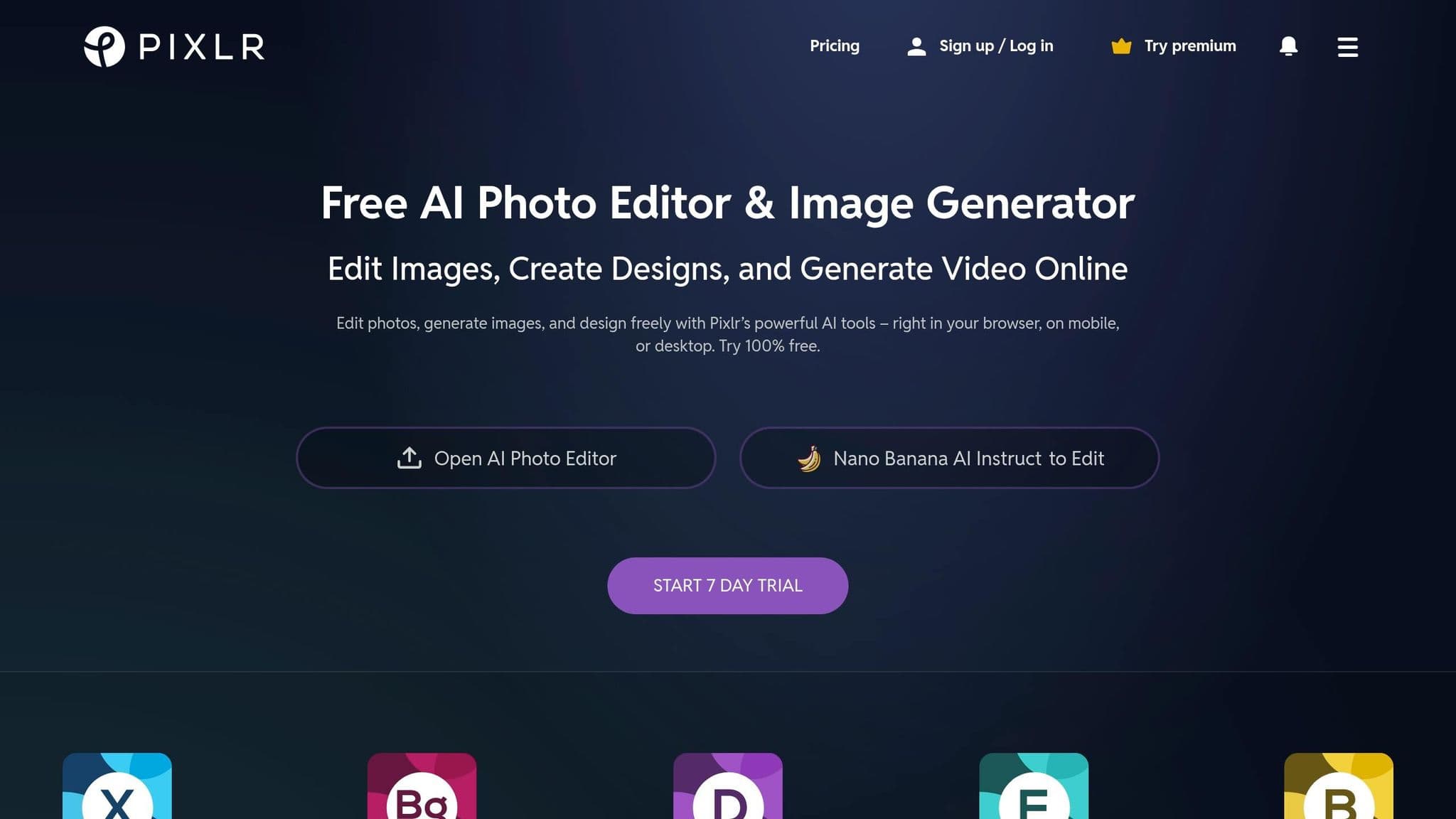
Pixlr stands out as a user-friendly, browser-based platform that brings AI-powered color correction to its vast audience of 300 million users. With no need for downloads or installations, Pixlr has become a go-to tool for photo editing, boasting 3 million daily active users and more than 15 years of service as a trusted online editor.
Pricing
Pixlr offers a range of plans to suit different needs. Its free tier provides essential color correction tools, including Auto Fix and manual sliders for vibrance, saturation, and temperature. However, this plan is ad-supported and limits daily saves.
For those seeking fewer ads and additional features, the Plus plan is available at $1.49/month (billed annually) or $2.49/month, offering 80 AI credits monthly. The Premium plan costs $6.49/month (billed annually) or $9.99/month, granting access to 1,000 AI credits, batch editing, and a private AI mode. Teams can opt for plans starting at $11.99/month (billed annually) for five seats, each with 1,000 AI credits. Verified schools and educational institutions can even access Premium features for free through Pixlr for Education.
Platform Compatibility
Pixlr is designed for flexibility, functioning seamlessly across web browsers, iOS and Android mobile apps, and desktop applications. A single subscription covers all platforms, making it easy to start editing on one device and continue on another without losing progress. Its browser-based approach eliminates the need for downloads or updates, allowing users to dive straight into editing. This cross-platform consistency is perfect for anyone juggling multiple devices.
Core Features
Pixlr combines simplicity with powerful tools. Its AI-driven features, like Auto Fix for quick color and lighting adjustments and Auto Pop for enhancing vibrance, make tonal corrections effortless. For more control, sliders for vibrance, saturation, temperature, and tint are available, alongside tonal range adjustments for brightness, exposure, contrast, black, and white levels. Premium and Team users also benefit from batch processing, enabling consistent edits across multiple images.
On top of that, Pixlr offers over 30 styles and effects, such as the 'Vivid' style for brightening colors and the 'Film' effect for adding texture with grain. These features make it easy to achieve professional-quality results.
Ideal Use Cases
Pixlr caters to a wide range of users. Social media creators love its pre-set aspect ratios for Instagram stories and Facebook banners, while its AI Background Remover processes images in just 3–5 seconds, making it a favorite for clean product shots. E-commerce businesses use tools like the AI Product Shot Creator and background removal to enhance their listings without hiring designers. For tight deadlines, features like autofix and autocontrast simplify quick retouching across multiple images.
Beginners also find Pixlr incredibly approachable. As Suraj M. shared:
"The best part about pixlr is that it is free to use without watermarks. It has user friendly interface and any beginners can use it".
Tool Comparison Table
Finding the right AI color correction tool hinges on factors like your workflow, budget, and level of expertise. These tools simplify the color correction process while improving image quality by automating intricate adjustments. Below is a summary of each tool's standout features, designed to help you decide at a glance.
| Tool | Pricing | Platform Support | Main Features | Recommended Uses |
|---|---|---|---|---|
| DaVinci Resolve | Free and one-time purchase option | Windows, macOS | Professional-grade color grading, 120fps support, precision tools | Best for high-end film production and commercial projects |
| Pixelbin | Credit-based; free tier available | Web-based, accessible from any browser | One-click enhancements, batch edits | Perfect for quick edits, product photography, and team collaboration |
| CapCut | Free with extensive features | Mobile (iOS/Android), desktop | AI auto-correction, social media templates, fast exporting | Ideal for social media content and casual editing |
| Color.io | Subscription-based | Web-based | Automated color matching, batch processing | Suited for high-volume tasks and brand color consistency |
| Retouch4Me AI Color Grader | One-time perpetual license | Windows, macOS | AI skin tone matching, targeted edits, plugin compatibility | Great for portrait photography and professional studio work |
| Upscale.media | Free tier available; paid plans for advanced features | Web-based | AI upscaling with color enhancement, batch processing | Designed for image restoration and enlarging photos while improving color |
| Pixlr | Free (ad-supported); Plus at $1.49/month; Premium at $6.49/month | Web, iOS, Android, desktop | Auto Fix, 30+ styles/effects, Premium batch editing, 1,000 credits | Tailored for social media creators, e-commerce, beginners, and fast retouching |
Professional-grade tools like DaVinci Resolve and Retouch4Me offer one-time licenses, while many web-based options use subscription or credit systems. For high-volume creators, AI tools have been shown to cut post-production time by up to 40%. Free tiers, such as those offered by CapCut and Upscale.media, are excellent for casual users and social media projects. Use this table to find the tool that aligns with your creative needs.
Conclusion
Each AI color correction tool brings its own strengths to the table, making the best choice highly dependent on your workflow, budget, and creative goals. For high-end production, DaVinci Resolve stands out with its ability to automate complex tasks with precision, making it a favorite among professionals. On the other hand, Color.io appeals to indie filmmakers with its authentic film emulation features and lifetime licensing option, eliminating the need for ongoing subscriptions.
For tasks like consistent product imagery, Pixelbin and Upscale.media offer efficient one-click white balance and batch processing capabilities. Meanwhile, CapCut and Pixlr are tailored for quick, seamless corrections and filters optimized for social media platforms.
AI tools can save up to 40% of post-production time compared to manual grading, making them an essential resource in a fast-growing market. These time-saving benefits reinforce the practical recommendations shared in this guide.
To get started, experiment with free tiers offered by tools like DaVinci Resolve, CapCut, or Pixlr to ensure the AI matches your creative vision. Keep in mind that AI performs best with high-quality source files, such as RAW or high-bitrate footage. It struggles to recover details from heavily compressed material. Additionally, it's wise to manually review elements like skin tones and overall scene consistency, as AI can sometimes misinterpret lighting nuances.
Adopting a hybrid workflow often yields the best results. Use AI for the heavy lifting - like base corrections and shot matching - and reserve manual adjustments for those key shots that require your personal artistic touch. This approach balances efficiency with creativity, helping you achieve professional-grade results while freeing up time to focus on your vision.
FAQs
Which AI tool is best for my workflow?
The best AI tool really depends on what you’re looking for and how much control you want over the process. If you’re after quick, automatic fixes, Pixelbin, Pixlr, and Cutout.pro are great options. They’re free, offer one-click corrections, and are perfect for beginners or handling batch edits.
On the other hand, if you need professional-level precision, DaVinci Resolve and Colourlab AI stand out for advanced color grading tasks. Meanwhile, NanoGPT gives you access to flexible AI models, though it’s not specifically tailored for color correction workflows.
Will AI color correction work on low-quality footage?
AI color correction can improve low-quality footage by tweaking exposure, contrast, and color tones. It’s especially useful for fixing problems like overexposure or underexposure, helping to create a more polished and consistent visual appearance.
What hardware do I need for AI color grading?
For AI color grading, make sure your setup includes a dedicated GPU with at least 4 GB of VRAM, like an NVIDIA or AMD graphics card. You'll also need at least 16 GB of RAM in your system to ensure smooth and efficient processing.